Controls, aiming and key bindings
A desktop control reference for movement, aiming, Ultimate, the map and the new mouse-binding settings in Beta v0.6.2.
Start with Settings → Keys, then use Settings → Controls to choose how you aim and manage the camera. The bindings below are the ones displayed during our menu check.
Keep the main actions within reach
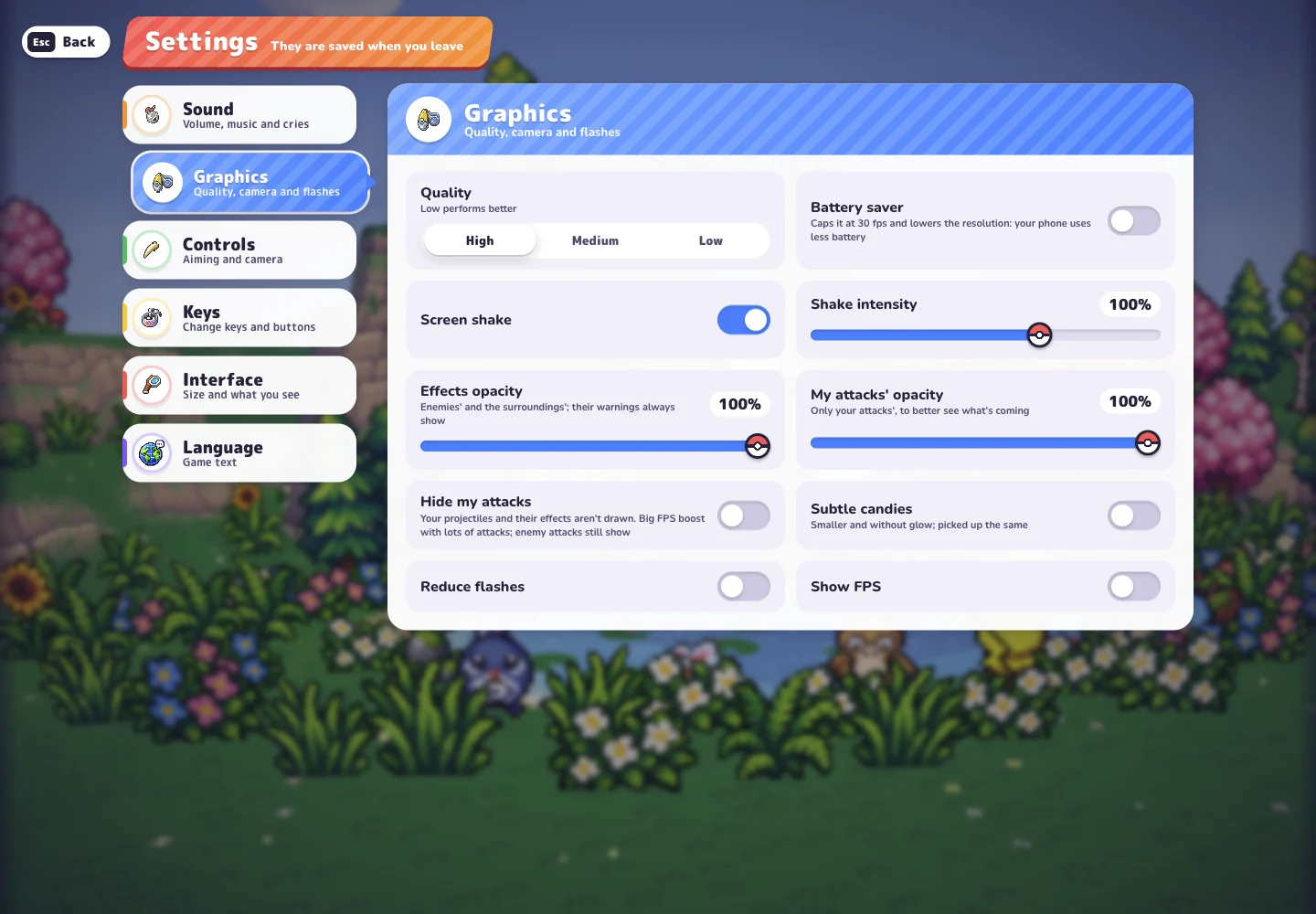
Open Settings → Keys in the original game to see the bindings attached to your actions. PokéBonk supports rebinding, so a saved personal layout can differ from this reference. If a key does something unexpected, compare the action name in that menu before changing your setup.
Learn movement, jump and slide first. Then locate interaction, Ultimate and the map so you can reach them without searching the keyboard. Keep the action names handy when changing your bindings: they make it easier to identify what each button controls.
| Action | Displayed binding |
|---|---|
| Move | WASD; the settings also list arrow keys |
| Jump | Space |
| Slide | Shift |
| Interact | E |
| Ultimate | R |
| Lock target | Right mouse button |
| Toggle aim | Q |
| Auto-run | T |
| Large map | M |
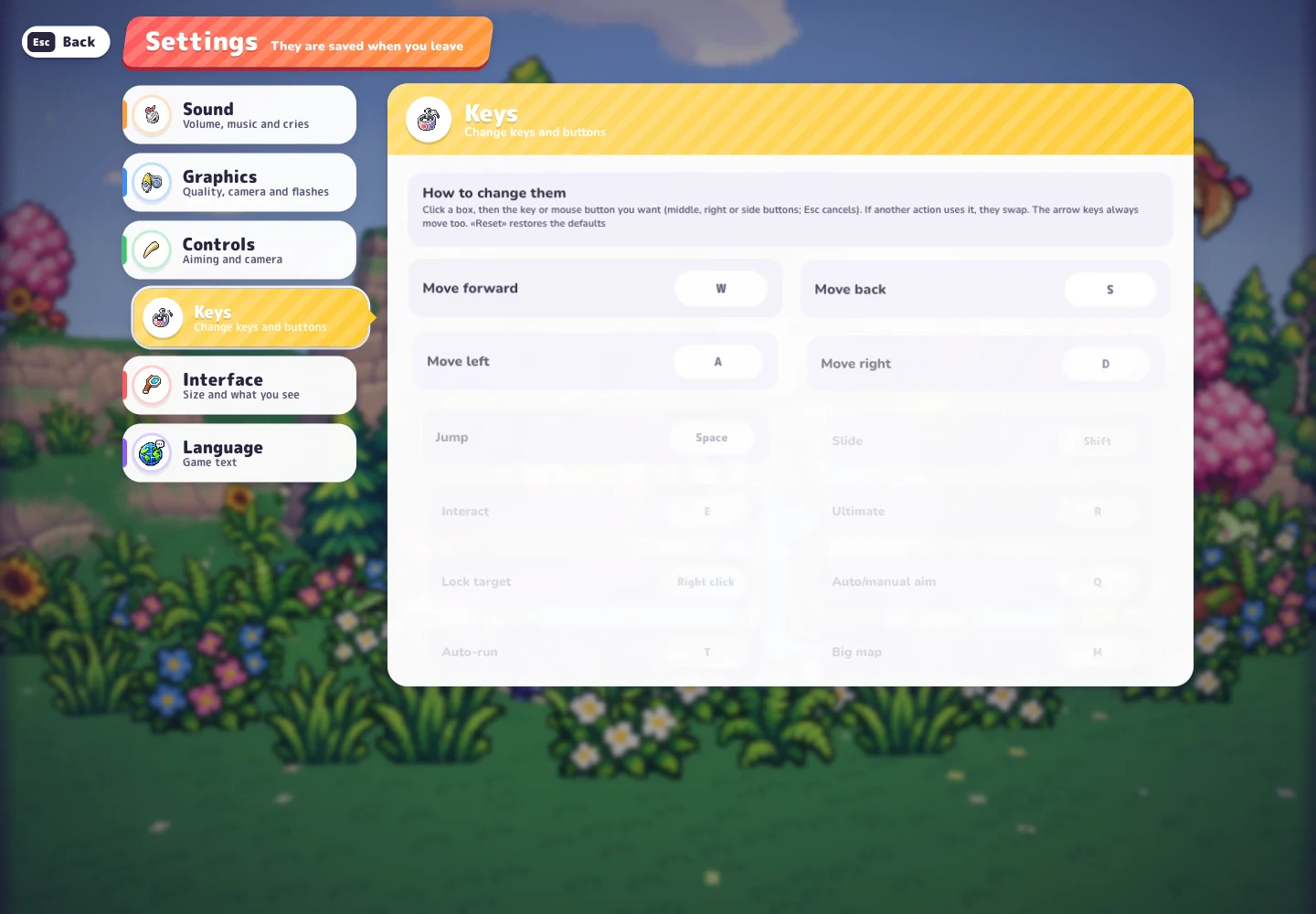
Choose aiming and camera options deliberately
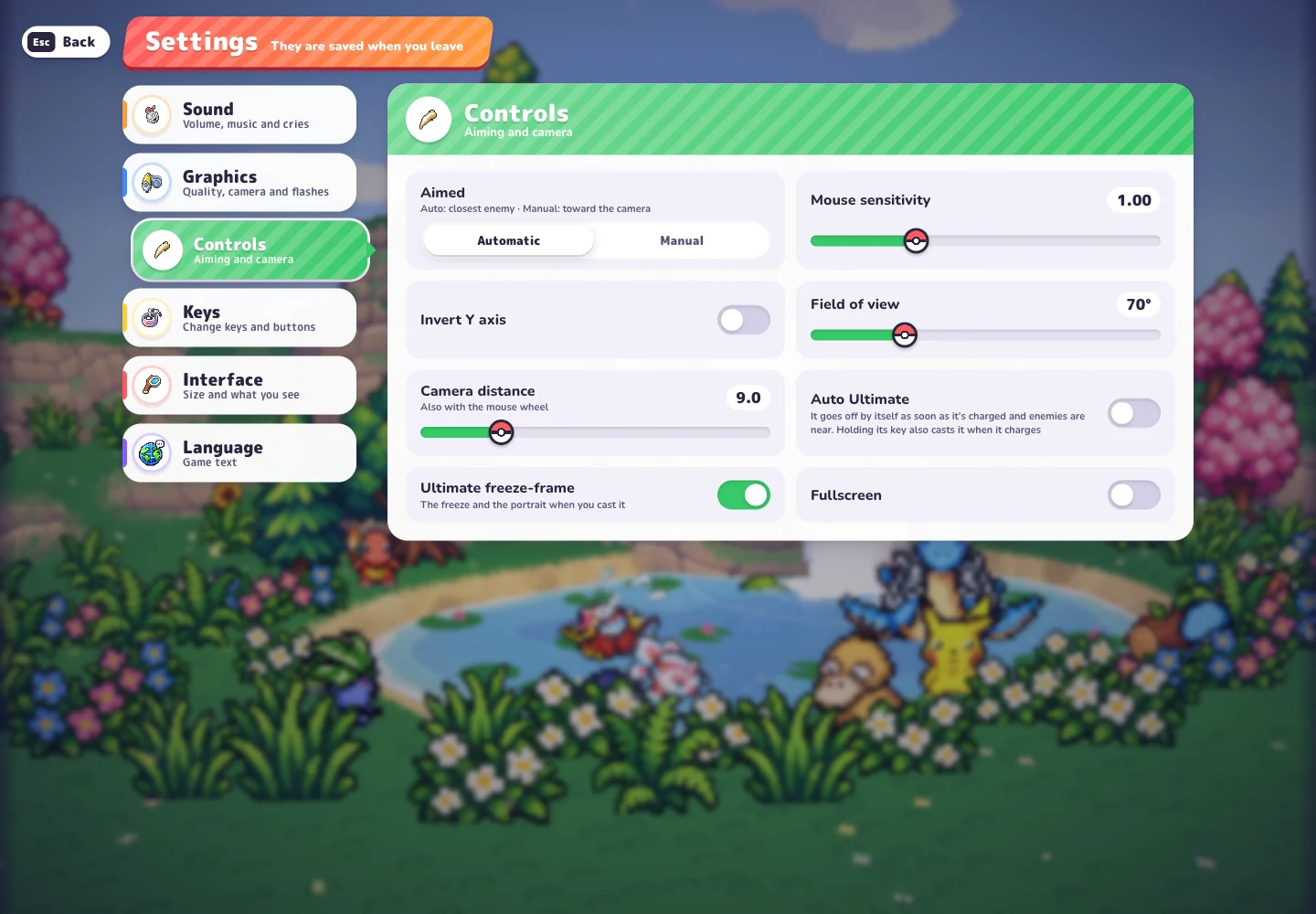
In Settings → Controls, Automatic aiming targets the closest enemy; Manual aims toward the camera. Choose the behavior you prefer, then check mouse sensitivity and the invert-Y option. If aiming looks different in a video, compare those settings with your own.
Adjust one option at a time so you can feel the difference. Field of view and camera distance change the view; the mouse wheel also changes camera distance. Auto Ultimate casts when the ability is charged and enemies are nearby. The menu also says holding its key will cast it when it charges.
Check the v0.6.2 changes
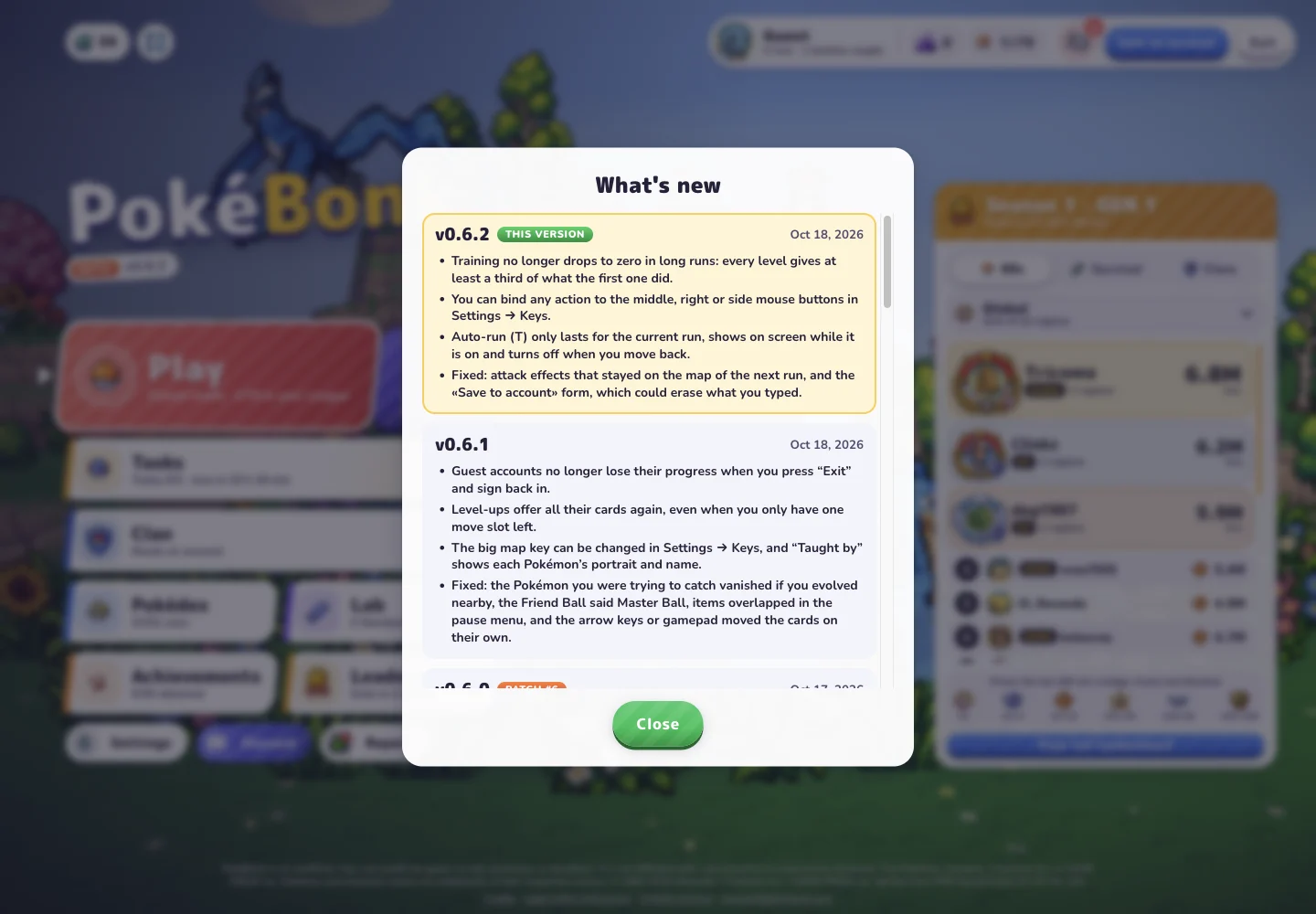
The built-in v0.6.2 release notes add mouse-button bindings and change the scope and cancellation behavior of auto-run. This makes the current Keys menu a better reference than an older keyboard screenshot. Review your assignment for auto-run if it persists or stops differently from what you remember.
This is a desktop reference; controller and touch players should follow the prompts in their own session. To read the full change history, open the version button beneath the game logo.
Sources & notes
- PokéBonk — original game and in-game menus
Main menu, release history, Squirtle profile, Settings, Lab and a locked League #001 card inspected on October 18, 2026, in Beta v0.6.2. The locked card describes its challenge and the challenge → wild encounter → capture sequence. Menu evidence; challenge completion and capture were not playtested.
See how this guide uses sources. The original game may change after the date shown above.